
Currently we have the following products that use Raspberry Pi single board computers.
- Animator drive in
- Animator city lights (pre production)
- Animator video train (prototype)
- Animator camera train (prototype)
They all use a customized Raspberry Pi OS created by JimmyTrains. If your sdCard gets corrupted you can get another one from us for a small charge. This file is too large to download.
Animator drive in
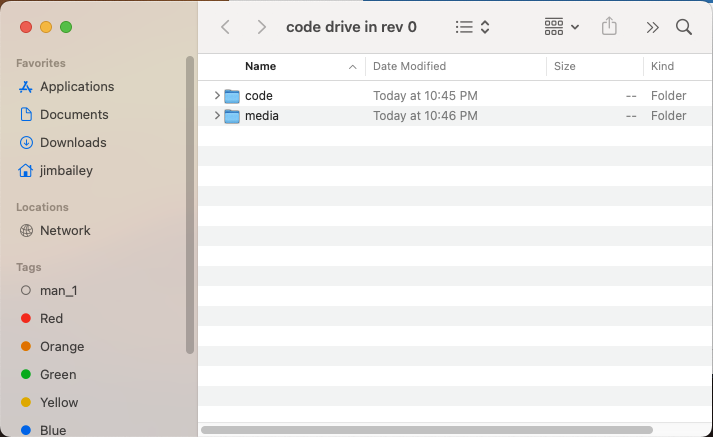
Unzip your download. You should have something that looks like below. The code folder has all the code for your animator. The media folder has the default media that ships with your drive – in. You normally don’t need to update this folder. But you can inspect it and see if there are additional intermission videos or Christmas videos on it that you might want.
Log into your pi using vnc.
Transfer files using vnc (see drive-in instructions to install vnc)
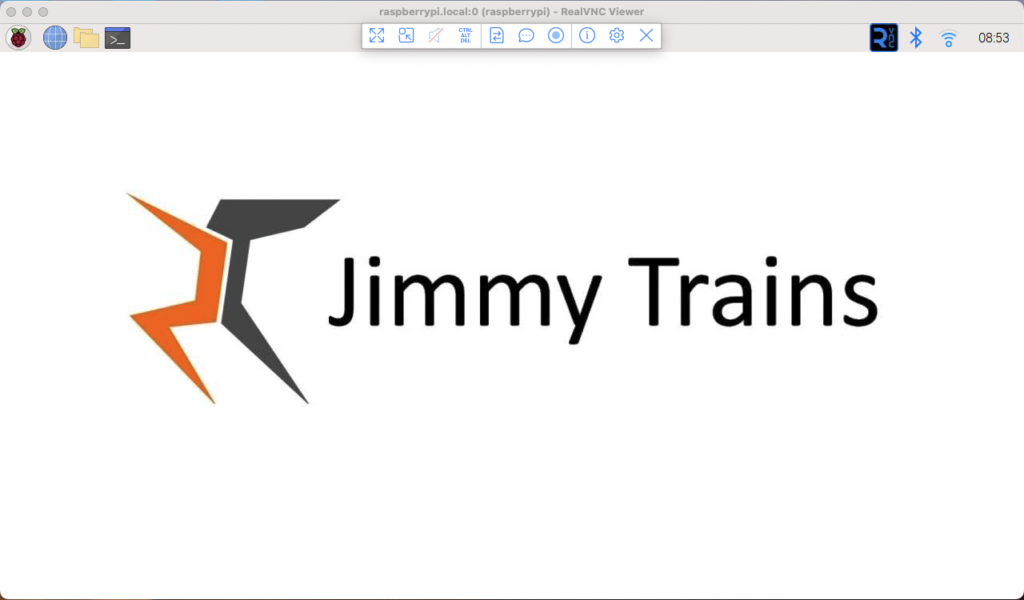
Log into your vnc connection to your “drive-in”. The following will be displayed. Hover over the top center of the screen. The VNC menu will pop up. Select the icon with the arrows.
The following file transfer screen will display.
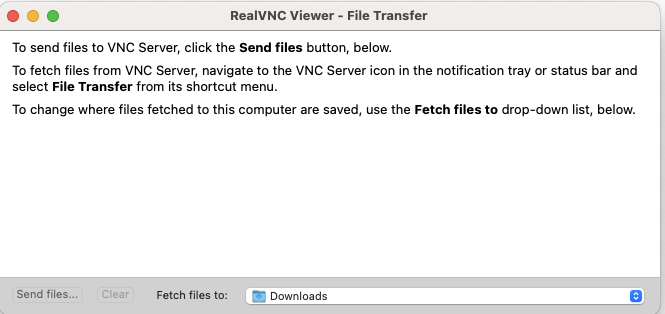
Press “Send files”. The following will display. Choose folder or files to transfer. They will then be copied to the “drive-in” to a desktop folder called “code drivein”.
Using the file explorer open the home directory called “drivein”. In this directory you will see the code folder. Make a backup copy of the code folder. Then replace the code folder with the code folder from with the one downloaded.
Reboot and enjoy the new version.
Happy animating!