
Installing new audio files on your sdCard (do this first)
Power down your animator.
On your animator press the microSd Card in and it should eject. Pull it out and put it into the microSD adapter an then into your card reader on your computer.
The microSd Card will mount as a drive on your computer. Open the drive and delete all the files and folders.
Then copy only the files inside the “sd card product name” folder to the microSd Card. After all the files have been copied eject the drive.
Reinstall it into the animator controller by pressing it in until it engages.
Installing new code on your animator controller (do this last)
To install new code on your animator controller you will need a USB A Male to Micro USB cable.
If you have your Animator connected to a train transformer disconnect it from the transformer. Then plug one end of the Micro USB cable into your computer and then the other into the micro USB port on Animator.
The animator will mount as a drive on your computer. There might be a loud sound from the speaker as the drive mounts. This is normal because the computer is taking over control. If loud sounds are alarming to you disconnect the speaker before connecting.
Open the drive called “CIRCUITPY” and delete all the files and folders. Then copy the files inside the “code product name” folder to the drive. After all the files have been copied eject the drive.
Power up your animator controller and you get a confirmation “Animations are now active”. Test it by pressing the activation button.
Happy Animating 🙂
Update operating system (only if needed).
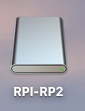
Unplug the animator from its power supply. Remove the cover on your animator by lifting the bottom edge of the cover with your finger nail or flat head screwdriver. Press and hold the white button located near the usb port while plugging in power. If successful you will get a disk image labeled “RP1-RP2” on your desktop.
Note: The bandstand and outhouse products have a different cover that needs removing. Refer to the instruction on those products to see how that is done.
Next download the operating system file listed under the updates. It will have a name similar to “adafruit-circuitpython-raspberry_pi_pico_w-en_US-X.X.X.uf2”.
Once downloaded drag it over the RPI-RP2 disk and it will automatically install the operating system.
Once finished it will mount a drive called “CIRCUITPY”. Now you can install the animator code files.